Denpa / The Signal screen
Applies to: Denpa Network Check (Mac) 1.0
This describes the Mac version. The screens are laid out differently, so it does not apply to the iPhone version. For the iPhone version, see here.
This is the app’s central screen. It reads what your Wi-Fi connection is doing once a second, and keeps recording for up to 24 hours. It is the screen for tracking down, after the fact, the kind of symptom that has usually fixed itself by the time you try to measure it.
This screen is divided into 12 sections. They are not just arranged side by side: each has its own job. In short, this is how to read them.
| Order | Section | What it tells you |
|---|---|---|
| ① First | Recording summary | What happened, or that nothing did |
| ② How much | Signal strength distribution | How much of the time it was weak |
| ③ When | Signal strength and noise | When it dipped (but not for how long) |
| ④ What caused it | Nearby signals over time | When it got crowded around you |
| Least busy channels | Which channels are free right now | |
| Access point changes | Whether this is behind the momentary freezes | |
| Devices coming and going | When it started getting crowded | |
| ⑤ Closer to home | Route | Whether the traffic goes over Wi-Fi at all |
| Connected Wi-Fi | The conditions on this one Mac right now | |
| Interface statistics | Whether it is keeping up with what it sends |
If nothing comes up in ①, there is no need to go on to ② and beyond.
Route in ⑤ is the one exception: there are times to look at it before any of the others. Slowness on traffic that is not going over Wi-Fi will not show up anywhere on this screen.
| Item | Details |
|---|---|
| Signal strength | How strong the signal arriving from the access point you are connected to is (RSSI). |
| Noise | The level of non-Wi-Fi noise in the same band. |
| SNR | The gap between signal strength and noise. It is this gap, not the strength alone, that decides how well traffic flows. |
| Transmit rate | The rate chosen at that moment. It drops automatically as the signal gets worse. |
| Traffic | How much actually flowed (download and upload). |
| Channel utilization | How much of that channel is in use. It is read every 10 seconds, the same interval as the scan for nearby networks. |
These all stack vertically as charts on one time axis. Find the moment it dipped, and you can follow what else was going on at the time.
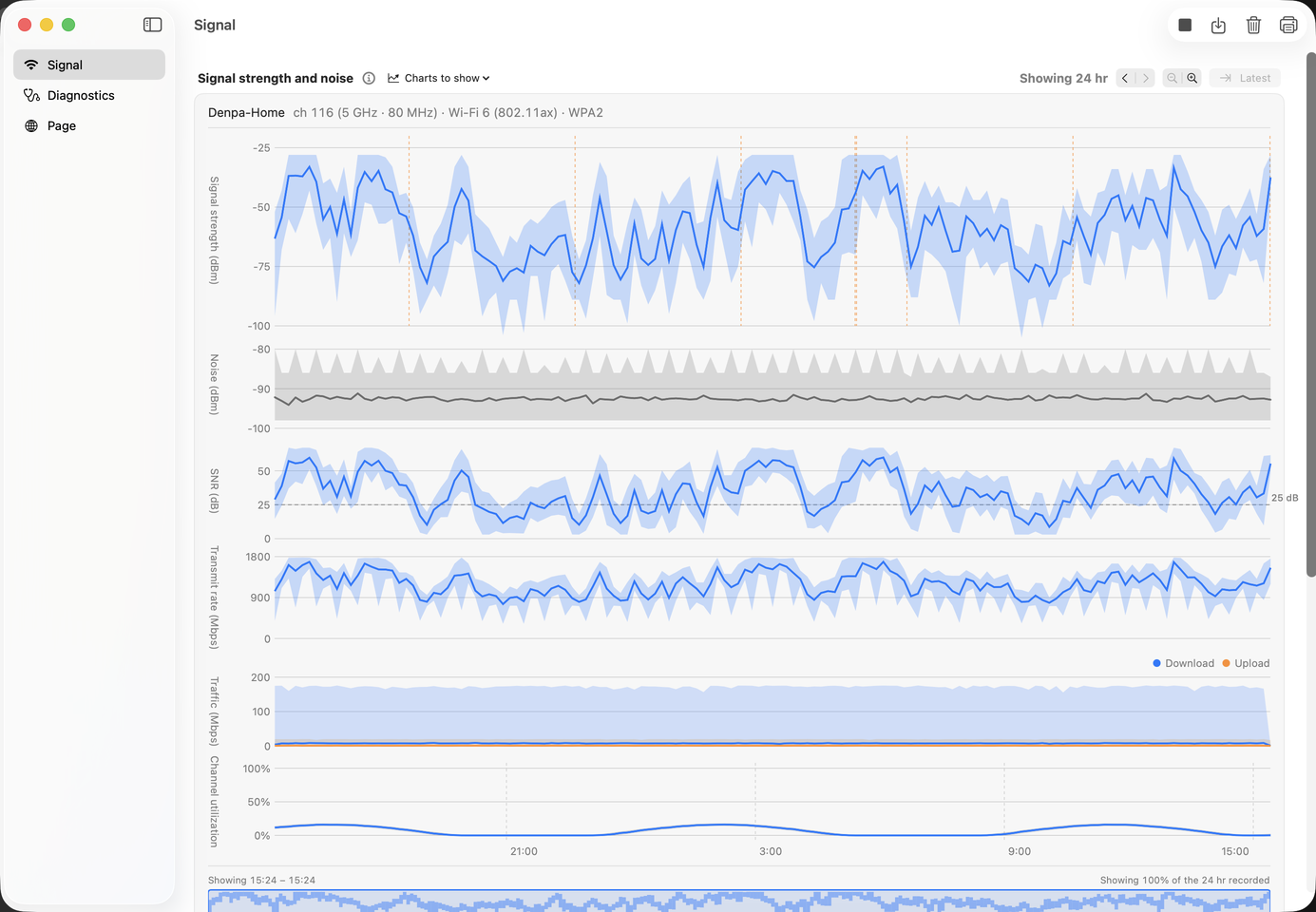
ch 116 (5 GHz · 80 MHz) · Wi-Fi 6 (802.11ax) · WPA2).The Charts to show menu above the charts lets you show or hide each of the six charts on its own.
The wide strip at the very bottom of the screen is the overview. It draws the whole recording squeezed into one band, and the blue frame marks the range currently shown in the charts.
What it is for. Zoom into a 24-hour recording and only a sliver of it is on screen. It becomes hard to tell where in the whole you are, so you use the overview to keep track of your position as you move. It is also the first clue when you are looking for a bias toward one time of day, such as “it only drops in the evening.”
When you change the range shown in the charts (30 minutes, 24 hours, and so on), some sections change with it and some do not. The ones that follow it have “(range on display)” after their heading.
| Follows the range (contents change with it) | Does not follow |
|---|---|
| Signal strength distribution Nearby signals over time Access point changes Devices coming and going |
Recording summary (counts the whole recording) Nearby networks (the result of the current scan) Connected Wi-Fi / Route / Interface statistics (current values) |
This section counts the whole recording (up to 24 hours) to answer the question “so, is my Wi-Fi any good?” What you get from the signal strength chart is when things happened, but 24 hours of it on its own does not tell you whether it is good or bad. So this section turns it into counted facts and what they suggest.
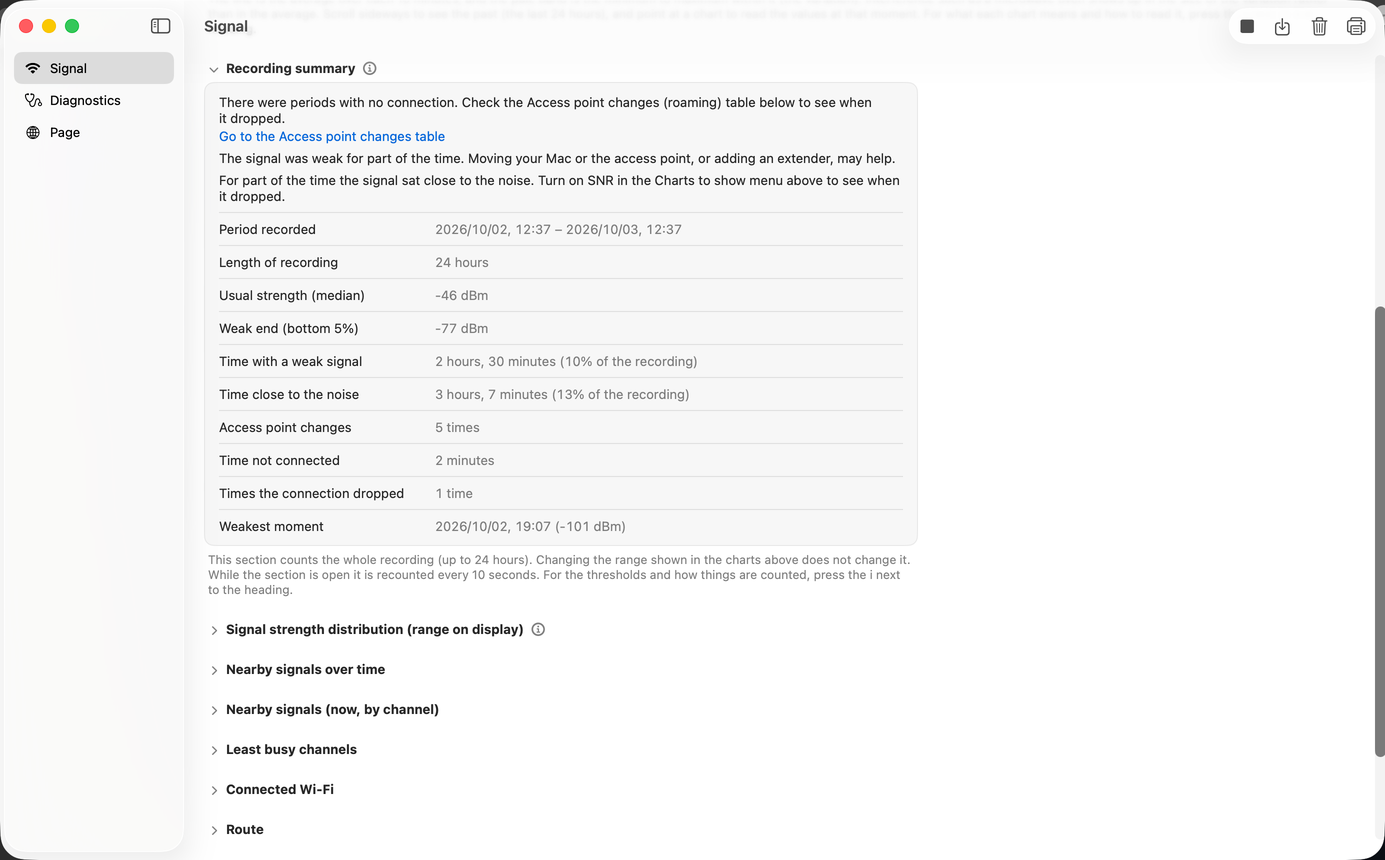
Only what applies is listed. If nothing applies, nothing appears. Each row carries a button that opens the section it points to and scrolls there — text alone would be a dead end whenever that section is collapsed.
| What it says | When it says it |
|---|---|
| The signal is weak | When it is below −70 dBm |
| Close to the noise | When the gap between signal and noise (SNR) is below 25 dB |
| Calling it long | When that state accounts for 10% or more of the whole recording |
| Changing access point often | Four or more times an hour |
| Giving no assessment | When the recording is shorter than 10 minutes |
This section does not change when you change the range shown in the signal strength chart, because it counts the whole recording. While it is open, it recounts every 10 seconds.
When you have finished recording, look here first. The other 11 sections are where you confirm what this one raised.
This section shows how much of the time the signal was weak. The signal strength chart tells you when it dipped, but not whether the dip lasted a moment or went on for a long time.
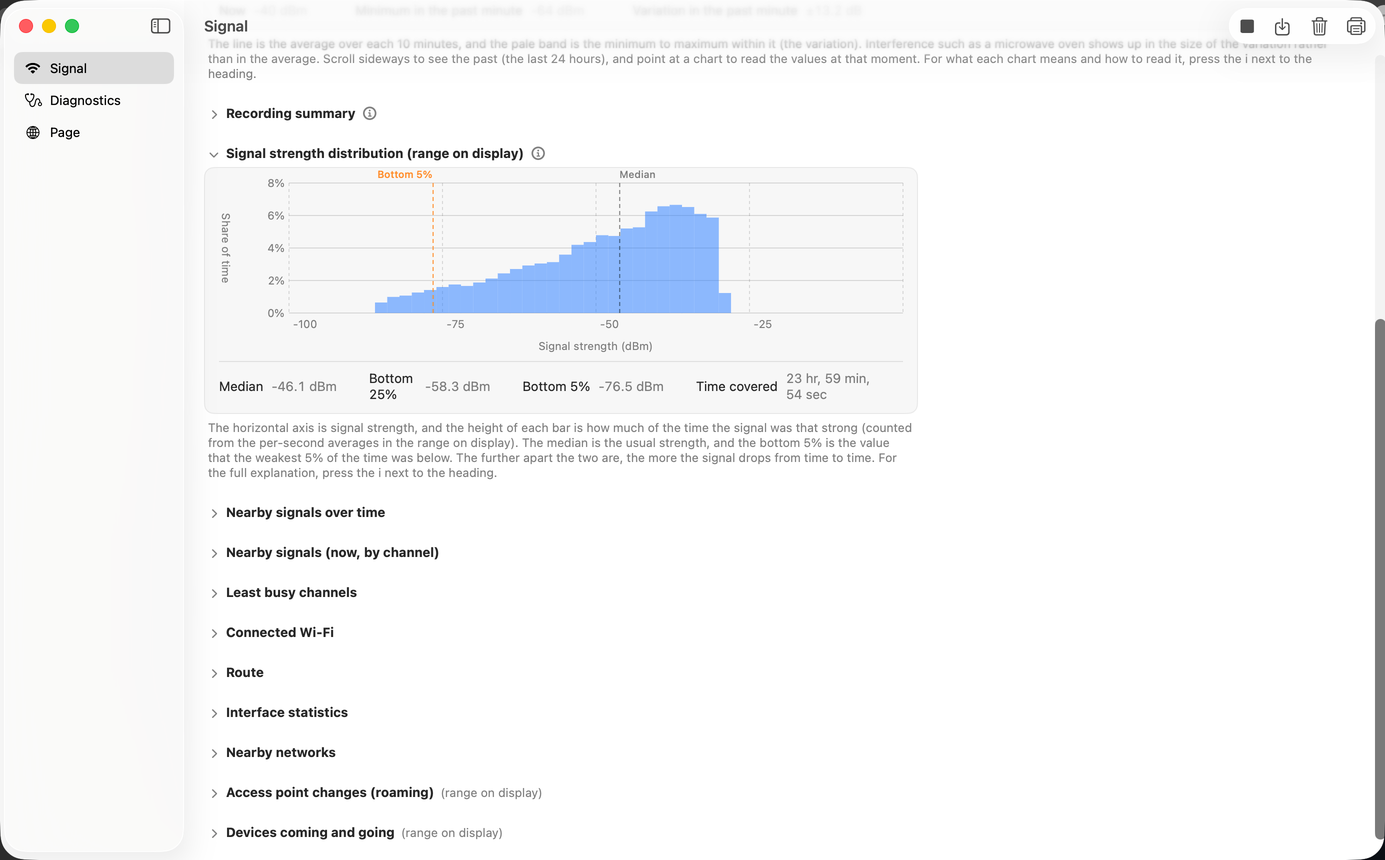
It counts the per-second values as they are. It does not group them into intervals the way the chart does — grouping buries short dips in the average and makes the distribution look narrower than it is.
The signal strength chart does not draw the per-second values as they are. It first groups them into intervals sized to the span of time on display. With 24 hours on display, one interval is 10 minutes.
Only three values survive an interval: the average, the minimum, and the maximum (the line is the average, the band is minimum to maximum). Where within the interval it happened, and for how long, is discarded in the grouping. So with 24 hours on display these two cannot be told apart.
| What really happened | How the chart looks |
|---|---|
| It dropped to −85 dBm for one second | The bottom of the band reaches −85. The line (the average) is pulled down by only one second out of 600, so it barely moves |
| It stayed at −85 dBm for the whole 10 minutes | The bottom of the band is −85, the same. The line comes down to −85 as well |
The bottom of the band reaches the same place in both cases. The width does not separate them either — both are one interval wide, a 240th of the screen, a few pixels.
What the signal strength chart tells you is how far it fell, not how long it stayed there. The distribution section, on the other hand, counts the per-second values before any grouping, so the length of time survives as the height of a bar.
This section turns “the signal feels weak” into something you can act on.
| The shape you see | What it means, and what to do next |
|---|---|
| The median itself is low | It is weak all the time. This is a placement or equipment problem. Moving the Mac or the router, or adding a Wi-Fi extender, is what helps |
| The median is good and only the bottom 5% is low | It is fine most of the time. Moving things will not fix it. Look for something that happens now and then: a time of day, people moving about, a microwave oven |
From the signal strength chart alone, these two look the same.
If even the bottom 5% is comfortably above −70 dBm, a weak signal does not explain it. You move on to other things: your internet connection, congestion, DNS lookups. Being able to say outright that the signal is not to blame is worth something too.
Because the height of each bar is a share of the time, you can read whether the signal was weak for 1% of the recording or for 20%. A percentage on its own, though, does not tell you whether that is a lot. There are two things to measure it against.
★ A percentage on its own, though, does not tell you whether it came in one block or was scattered.
Fourteen minutes in a row and you are bound to notice: calls drop, video stalls. Scattered over 840 separate seconds, you usually notice nothing. The same 1% means something entirely different.
What this section answers is how much. When, and whether it came in one block, is answered by other sections — go back to the signal strength chart and look for where the dips cluster, look at Weakest moment in Recording summary, and if the connection actually dropped it appears in the Access point changes and Devices coming and going tables.
Record for the same length of time before and after moving the router or changing channel, and see whether the gap between the median and the bottom 5% has narrowed. That tells you whether it helped.
A chart with frequency across, time down, and signal strength as the depth of color. The oldest rows are at the top. Devices that appeared later, and devices that disappeared partway through, show up in how the bands join up.
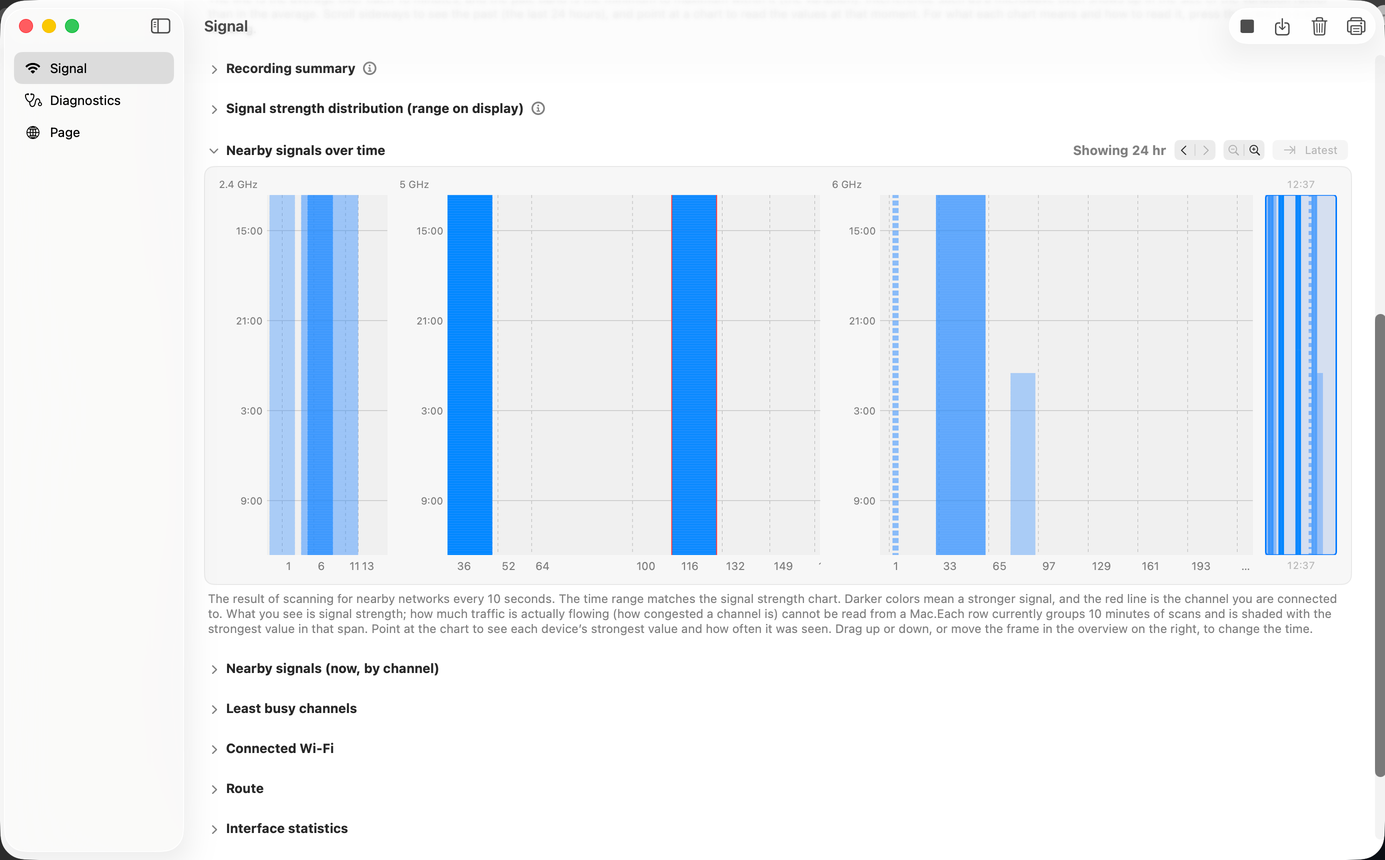
What you see is signal strength, not how much traffic is actually flowing (how congested a channel is). That cannot be read from a Mac. For how busy a channel is, use channel utilization instead, which is what the access points report themselves.
Where the other sections look at your own Mac, this is the only one that shows how everything around you changes over time.
| What you see | How to read it |
|---|---|
| It darkens only at night, or only on weekday afternoons | How crowded it gets varies by time of day. If you measure again, do it at that time of day |
| A band that starts partway down | A new device appeared at that time |
| The red line steps sideways partway down | Your router moved to a different channel (after detecting radar, for instance. It was the router that moved) |
| One particular channel is dark all day | That is a reason to avoid that channel |
Three sections that show current values. They do not change when you change the range on display.
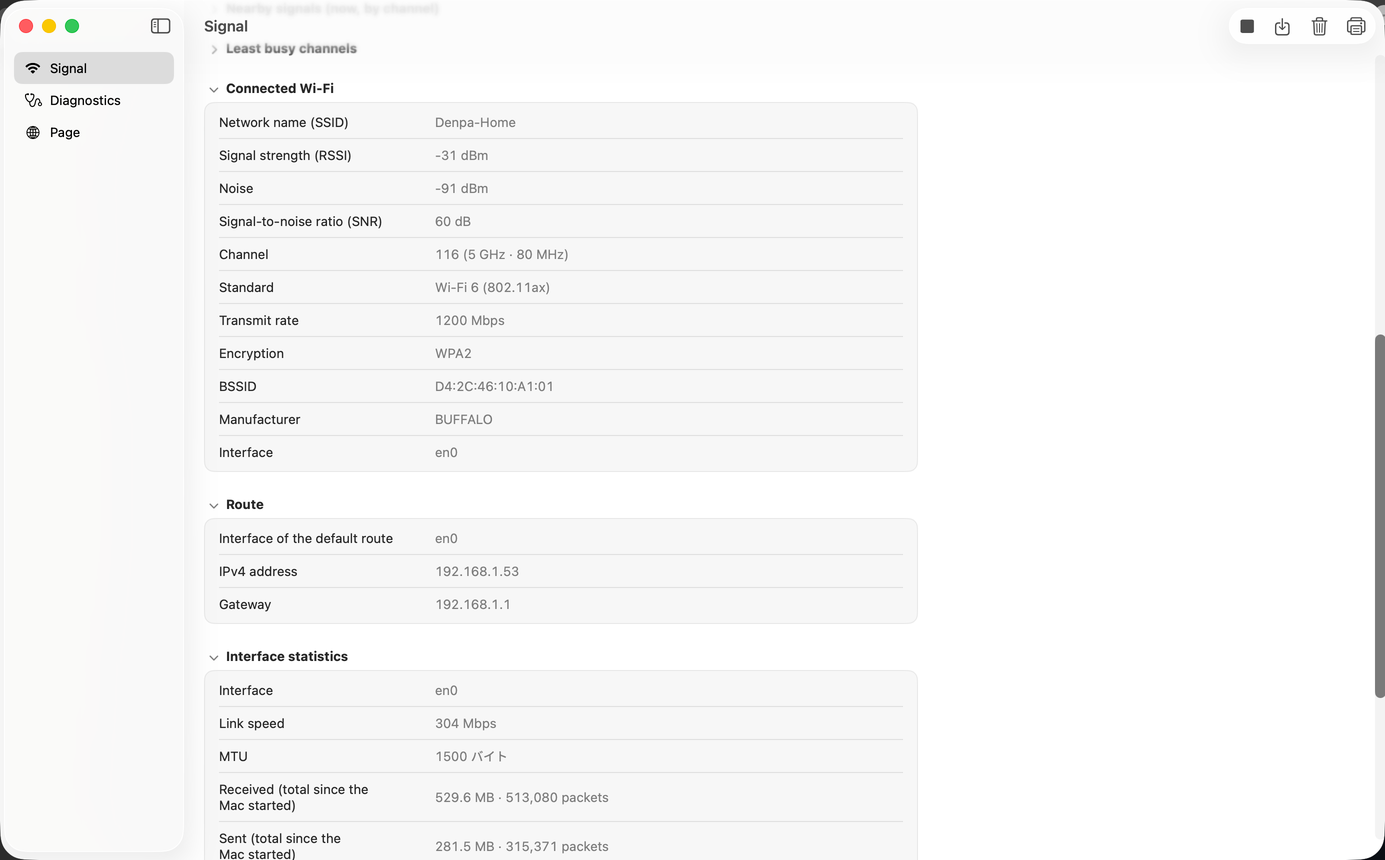
The values for the one access point you are connected to right now. It gives more detail than the heading above the charts.
Network name (SSID) / Signal strength (RSSI) / Noise / Signal-to-noise ratio (SNR) / Channel / Standard / Transmit rate / Encryption / BSSID / Manufacturer / Interface.
Transmit rate is the rate chosen at that moment, not the speed you are actually getting.
The SSID and the BSSID cannot be read without location access.
This is a section to read in combinations, not one value at a time.
| The combination | How to read it |
|---|---|
| Signal strength is good but the transmit rate is low | This suggests interference or retries. The number of retries cannot be read from a Mac, though — a drop in the transmit rate is the clue you have instead |
| The channel width has dropped from 80 to 40 MHz | The router has chosen a narrower width. The ceiling on speed comes down with it |
| The standard is still Wi-Fi 4 or 5 | That is what the router or the Mac supports. Moving things will not raise it |
| SNR is below 25 dB | The signal is sitting close to the noise. Watching the strength (dBm) alone, you would not notice |
To see how things changed over time, use the signal strength chart rather than this section. This section shows current values only (it does not follow the range on display). Transmit rate and SNR can be shown as charts too, so you can follow when they dropped there.
The route your traffic is taking right now. The default route is read straight from the OS routing table. Three things are shown: Interface of the default route / IPv4 address / Gateway.
It is a small section, but miss it and the whole screen can be wasted effort. ★ The traffic may not be going over Wi-Fi at all.
If the interface shown is not Wi-Fi, no amount of reading the signal sections will turn up the cause of the slowness. Fixing the route first — unplugging the Ethernet cable, turning off the VPN — is the quicker way.
On a Mac with both Wi-Fi and Ethernet connected, or with a VPN up, a non-Wi-Fi interface here is not a mistake. It shows the route the traffic is actually taking.
The Gateway value tells you which device is the way out. After adding a Wi-Fi extender or a router, you can check whether the way out is a different device than you expected.
The per-interface totals that the OS counts. Interface / Link speed / MTU / Received and Sent (totals since the Mac started) / Traffic in this recording / Errors, drops, and collisions / Send queue overflows.
This is the section most often misread.
The Received and Sent totals cover all traffic on this Mac, including apps other than Denpa. They are the amounts since the Mac started (or since Wi-Fi was switched off and on again).
For the amount since you opened Denpa, use Traffic in this recording.
Errors, drops, and collisions say “macOS does not count these”. They do not show “0”. The macOS Wi-Fi driver does not count them, so real drops do not appear in the figures either. The number of retries cannot be read from a Mac either.
Send queue overflows is the one that really is counted.
| Item | |
|---|---|
| Can be read | Traffic in this recording (the amount since you opened Denpa) / Send queue overflows / Link speed and MTU |
| Cannot be read | Receive errors, send errors, drops, and collisions (they say “macOS does not count these”) / Retries are not there as an item at all |
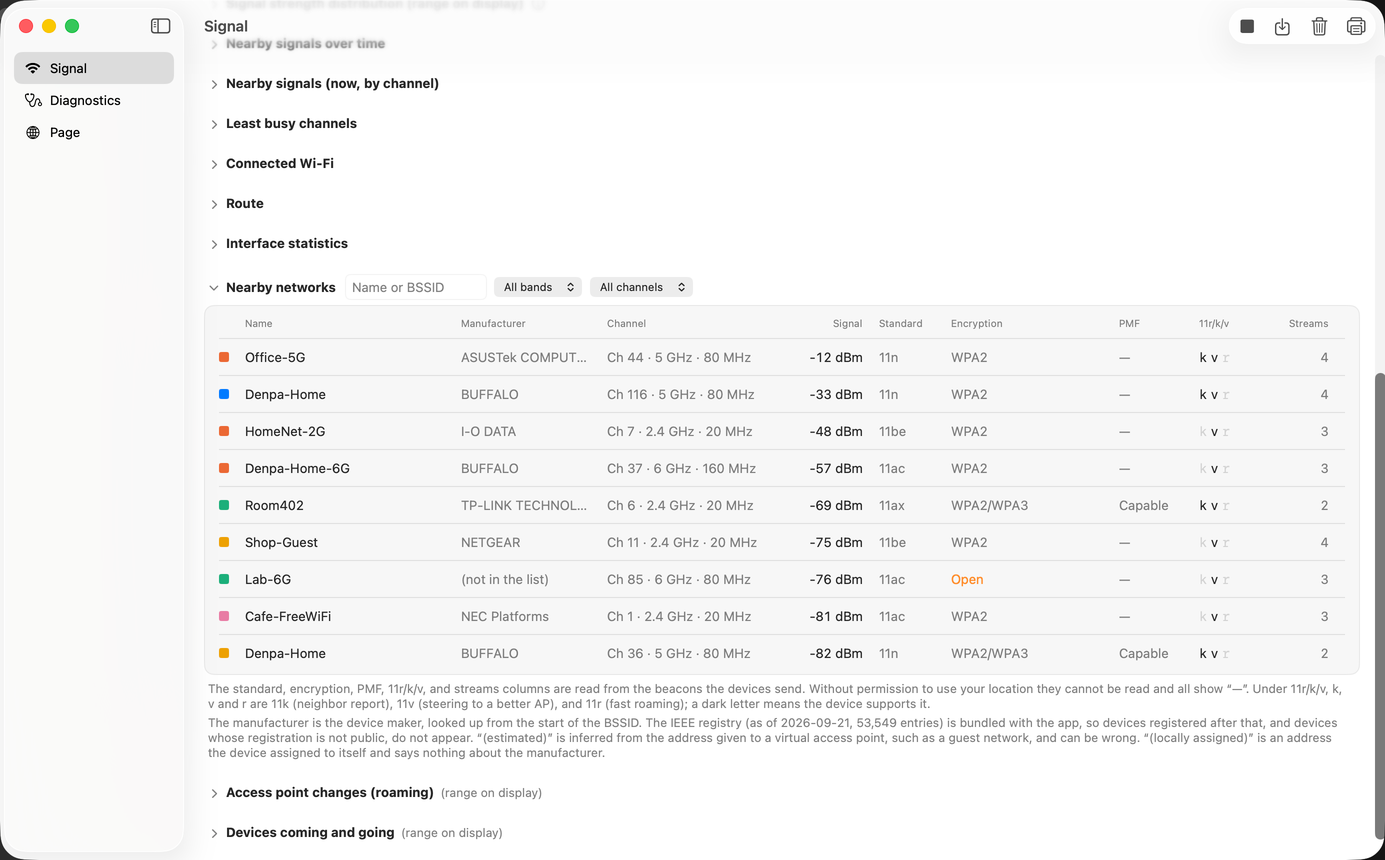
It scans for nearby networks every 10 seconds. What it finds is listed in a table, down to the following items.
| Section | Details |
|---|---|
| Name (SSID) | The name of the network. |
| Manufacturer | The device maker, looked up from the address (BSSID). No request goes out (see below). The date the registry was taken and the number of entries are shown on screen as well (for example, as of 2026-09-21, 53,549 entries), because devices registered after that, and devices whose registration is not public, do not appear. “(estimated)” is inferred from the address given to a virtual access point, such as a guest network, and can be wrong. “(locally assigned)” is an address the device assigned to itself and says nothing about the manufacturer. |
| Channel | The channel in use and its width. |
| Signal | How strong the signal arriving from that device is. |
| Standard | The Wi-Fi generation. |
| Encryption | The encryption method. |
| PMF | Management frame protection. It shows as one of Required / Capable / None (“Capable” means supported but not required). When it cannot be read it shows “—”. |
| 11r/k/v | What the device supports for changing access point. It shows as the three letters k, v, and r (11k neighbor report, 11v steering to a better AP, 11r fast roaming). A letter in darker type means it is supported. |
| Streams | The number of spatial streams that can be used at once. It is read from the beacon (from the Wi-Fi 5 or later information if present, otherwise counted from the Wi-Fi 4 information). When it cannot be read it shows “—”. |
A record of the connection moving to a different access point. A row is added each time the access point (BSSID) or the channel changes. When one Wi-Fi network has several access points, the Mac moves to the stronger one by itself.
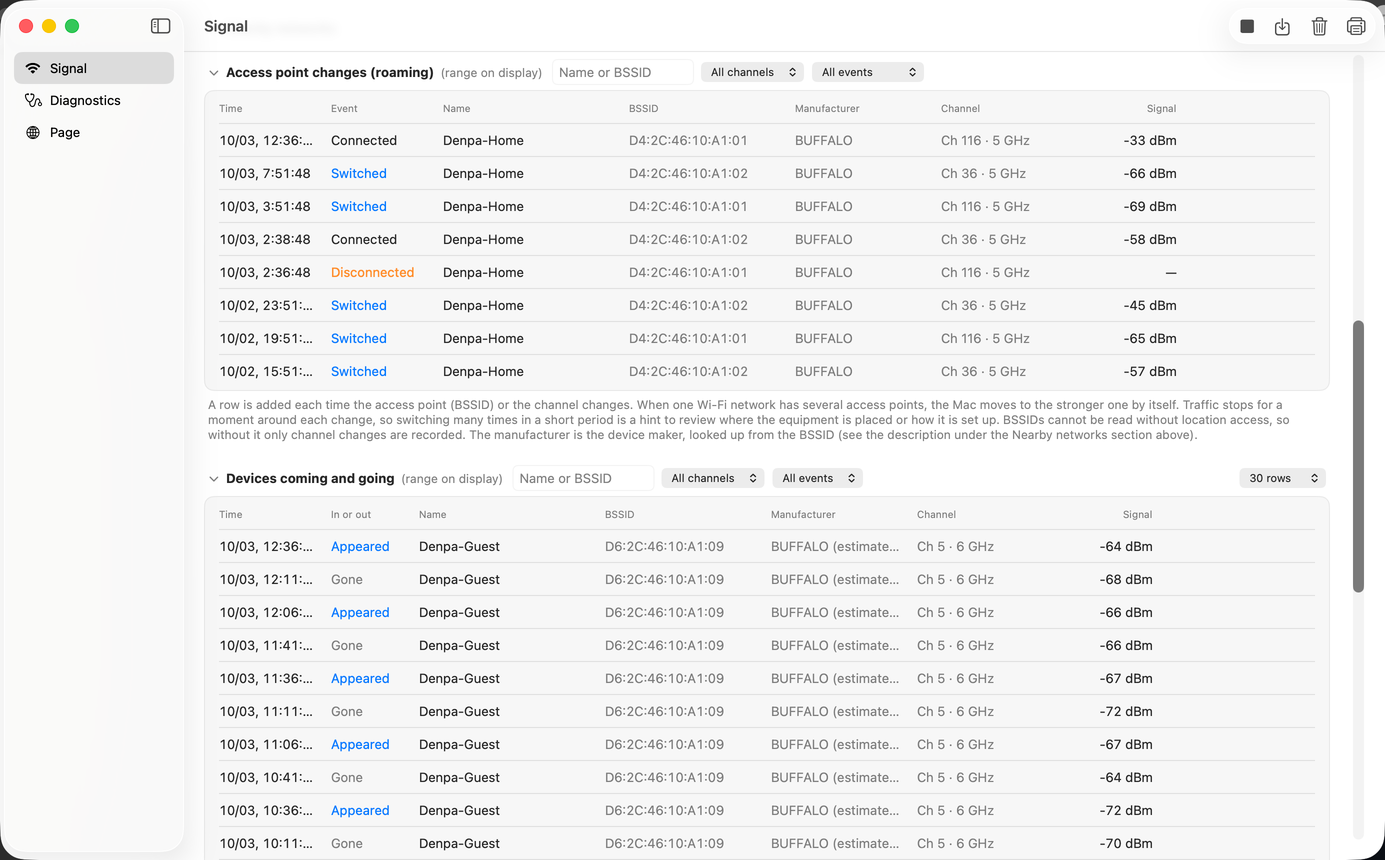
There are seven columns: Time / Event / Name / BSSID / Manufacturer / Channel / Signal. The event is one of three: “Connected”, “Switched”, and “Disconnected”.
Traffic stops for a moment around each change, so switching many times in a short period is a hint to review where the equipment is placed or how it is set up.
No reason for a change is kept, because macOS does not say why.
For the strength before and after, compare the rows: each row carries the strength at that moment. Only the “Disconnected” rows carry no strength — the value at the instant it drops cannot be trusted.
BSSIDs cannot be read without location access, so without it only channel changes are recorded.
Traffic stops for a moment around each change. This is where complaints come from: video freezing for an instant, calls breaking up, video meetings in particular going badly.
When nearby networks appeared, and when they stopped being visible. The columns are Time / In or out / Name / BSSID / Manufacturer / Channel / Signal, and you can choose 30, 50, or 100 rows (this is the lower half of the screenshot above).
This section cannot be built without location access, because telling one device from another needs the BSSID.
This is where you find the reason to pick a different channel.
| What you see | How to read it |
|---|---|
| A device that appeared at some point and stayed | A new access point has gone up nearby. It is time to review your channel |
| A device that appears only at certain times of day | A mobile router, a guest network, a neighbor’s device that runs only in the evening. If you measure again, do it at that time of day |
| A device that comes and goes repeatedly in a short period | It is right at the edge of range. It is unlikely to be the main cause of congestion |
It lays 2.4 GHz, 5 GHz, and 6 GHz side by side and draws which channels have devices on them, and how strong those devices are.
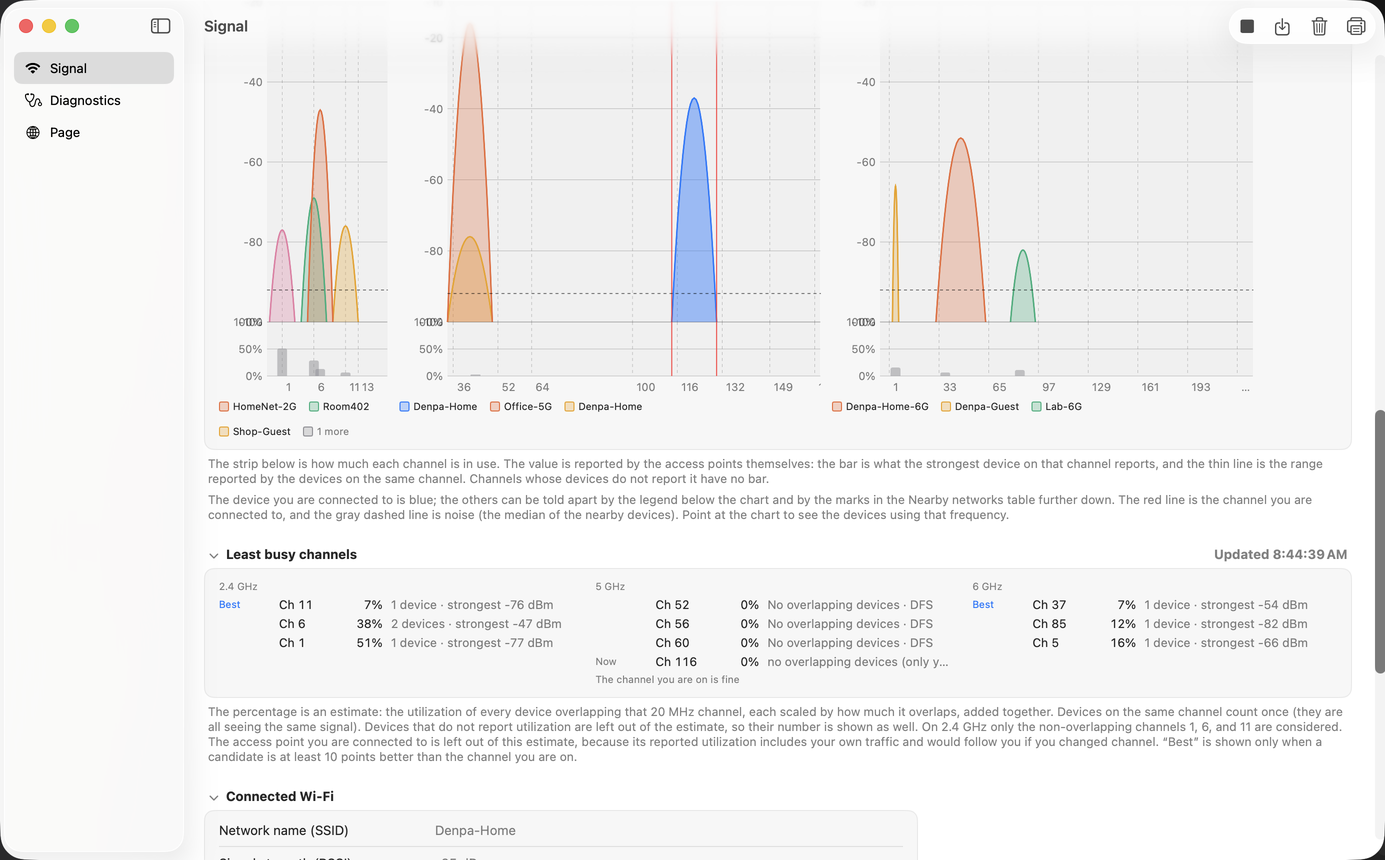
The strip below the chart is how much each channel is in use. The value is reported by the access points themselves: the bar is what the strongest device on that channel reports, and the thin line is the range reported by the devices on the same channel.
Channels whose devices do not report it have no bar. These are the values the devices state themselves, not the app’s estimate of how congested a channel is.
It is an estimate: the utilization of every device overlapping that 20 MHz channel, each scaled by how much it overlaps, added together. The thinking behind it is as follows.
It appears only when a candidate is at least 10 points better than the channel you are on. Moving for a small difference gains nothing, and the order changes as soon as the devices around you move. When there is no candidate, it says only “The channel you are on is fine”.
Part of 5 GHz (channels 52 to 144) is shared with weather radar and the like. There is a wait before this band can be used, and a router that detects radar moves to a different channel. Denpa marks these channels “DFS” and, where two channels are equally busy, lists the non-DFS one first — given that it can keep you waiting, there is no reason to recommend it.
Moving channel is something the router does, not a feature of this app. Denpa neither detects radar nor tells anything to move.
Nor does it know why a move happened. When a router moves channel for DFS, a row does end up in Access point changes, but whether that was DFS or something else is not distinguished (because macOS does not say why).
A recording can be saved to a .denpa file and opened again later. It can also be printed on A4 pages, or saved as a PDF. Useful when you want to hand what you measured to someone as it is.
.denpa file as you go.The full list of what it cannot do is under What Denpa Network Check (Mac) cannot do.
Everything this screen records stays on this Mac. The names (SSID) and addresses (BSSID) of nearby networks do not leave it either. No request goes out to show the manufacturer — the IEEE registry is bundled with the app.
Recording the signal and scanning for nearby networks generate no internet traffic. The app talks to the outside only when the Diagnostics or the Page screen is measuring. See the privacy policy for details.
Parts of this screen do not work without permission from macOS.
The app works without either of them; it can simply measure less. See Support for details.
 Denpa
Denpa