Denpa
The Denpa app icon

macOS 15.0 or later / Apple Silicon and Intel (Universal)

Record your Wi-Fi signal for 24 hours, and see what causes those occasional drops.

“Video stalls in the evening.” “Same room, but it drops now and then.” By the time you try to measure, symptoms like these have usually gone away. Denpa Network Check (Mac) keeps recording what the signal is doing, once a second, for up to 24 hours. Afterwards you can line up the moment it dipped with what was happening at the time.

Free No in-app purchases No ads No account

Download on the App Store

Once a second Strength, noise, traffic Recording Up to 24 hours One shared time axis Move using the overview Look back later Zoom in on the dip Once a second Up to 24 hours Look back later Strength, noise, traffic One shared time axis Zoom in on the dip Recording Move using the overview
Because you can go back through the recording after the symptom appears, you avoid the problem of it having fixed itself by the time you measure.

Three screens, and printing

Signal, Diagnostics, and Page are switched from the sidebar on the left. Printing is done from the menu. The signal recording keeps running; the diagnostics and the page measurement run only when you click.

Signal
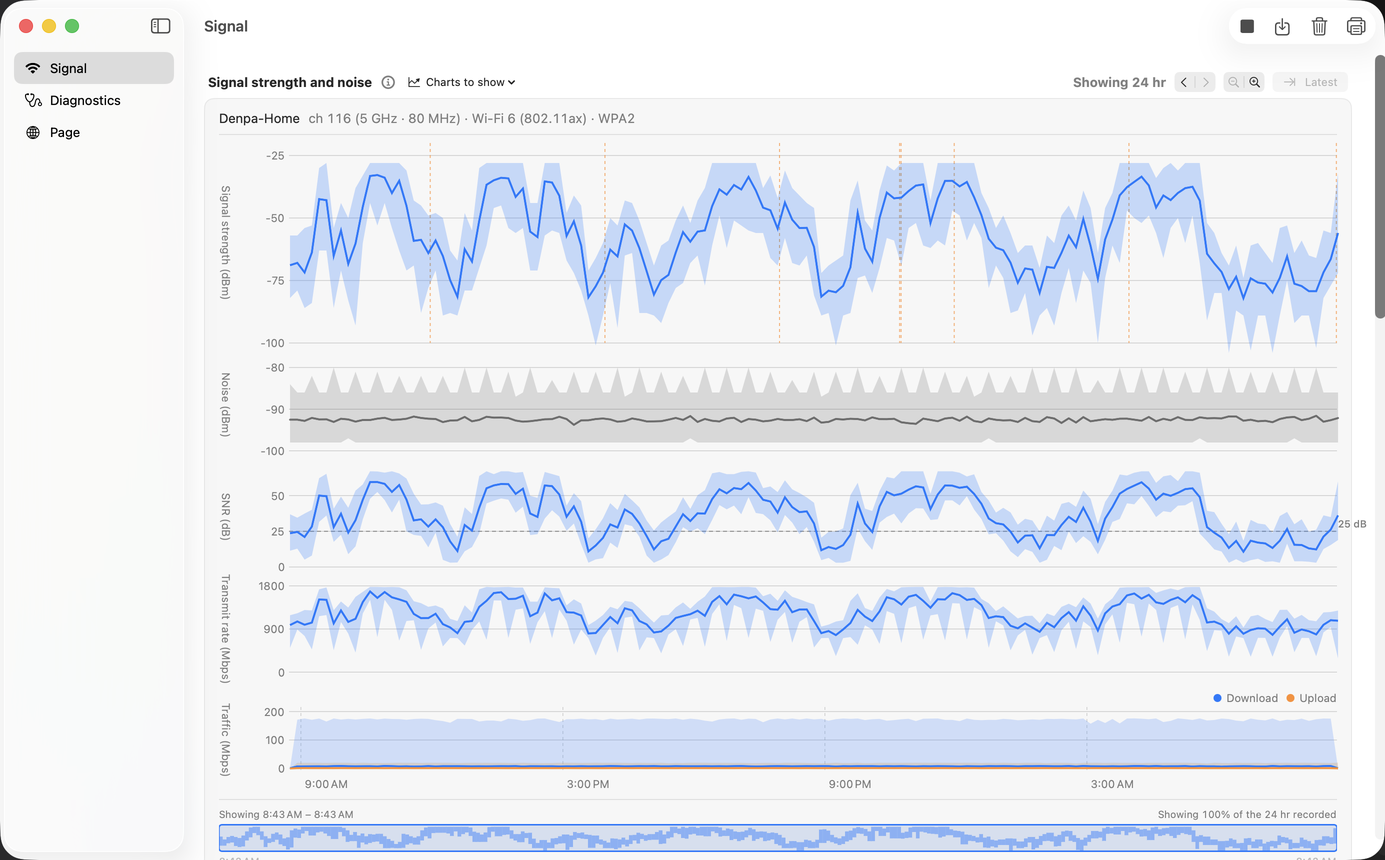
This is the app’s central screen. It reads the signal strength, noise, the gap between them (SNR), transmit rate, and traffic of the Wi-Fi you are connected to once a second, and keeps up to 24 hours of it. It also scans for nearby networks every 10 seconds and shows how they are spread across the channels on 2.4 GHz, 5 GHz, and 6 GHz, together with an estimate of the least busy channels. A recording can be saved to a .denpa file and opened again later.
More about the Signal screen →
Diagnostics
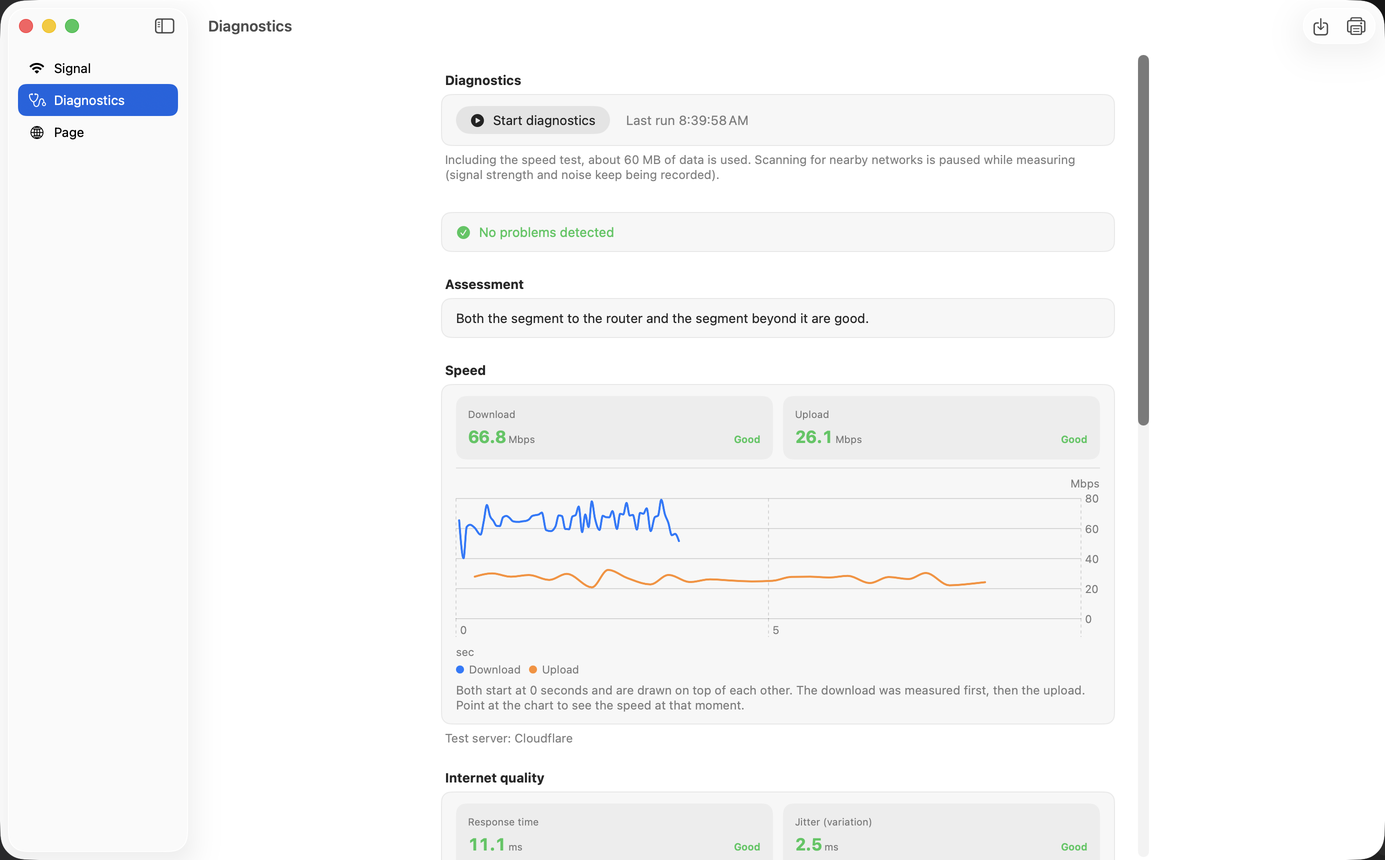
Nothing is measured until you click Start diagnostics. It measures response time, jitter, packet loss, DNS lookup time, and download and upload speed, then splits the path at your router and tells you in plain sentences which side the cause is likely to be on. Findings are listed as Error, Warning, or Information, each with what you can try.
Page
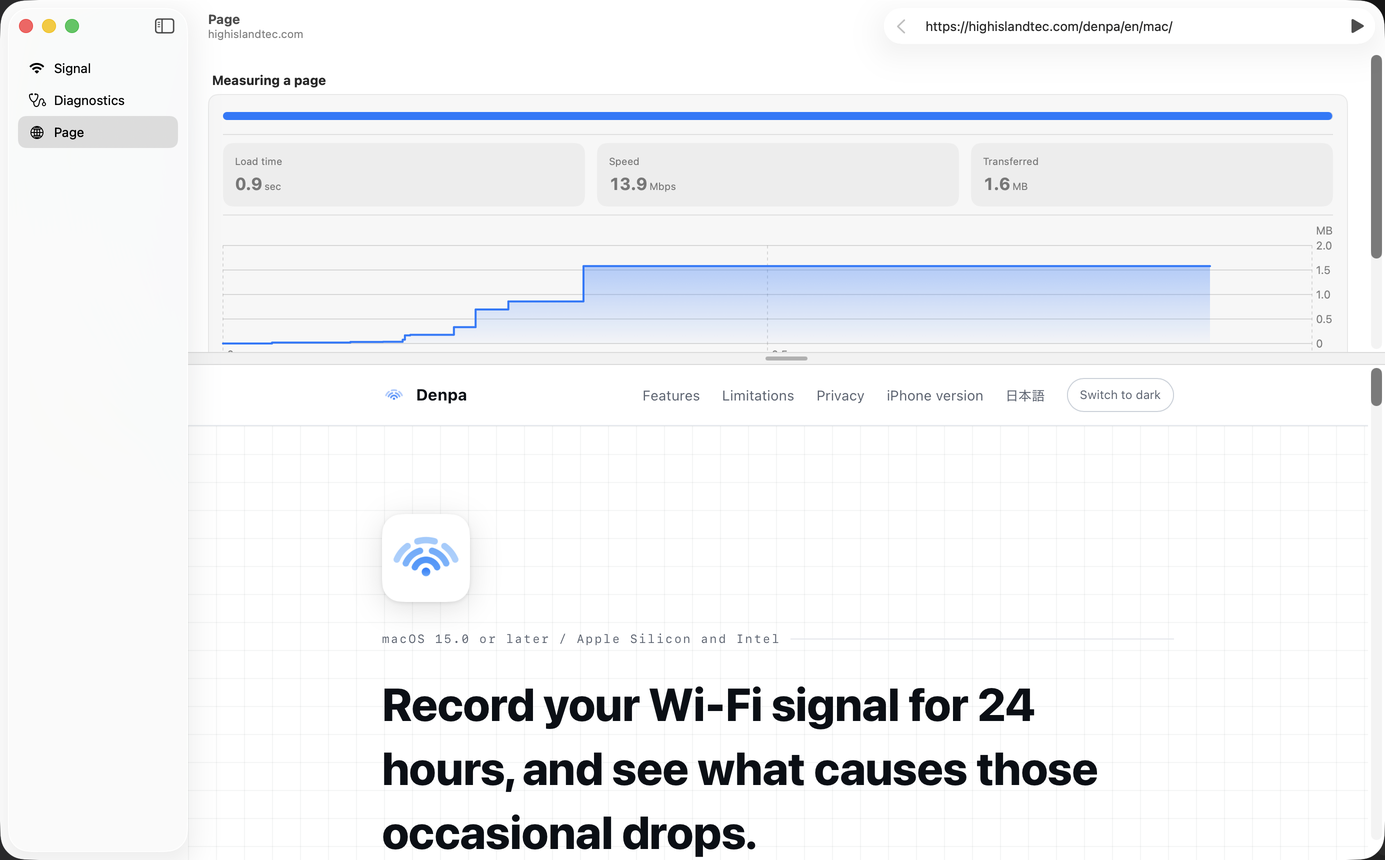
Loads the page at a URL you enter and measures how long the load takes. It shows three values — Load time, Speed, and Transferred — along with a chart of the load over time. The page itself is shown in the lower half of the window, and clicking a link measures that URL. The cache is cleared before every load, so measuring the same page repeatedly keeps the conditions identical.
Printing
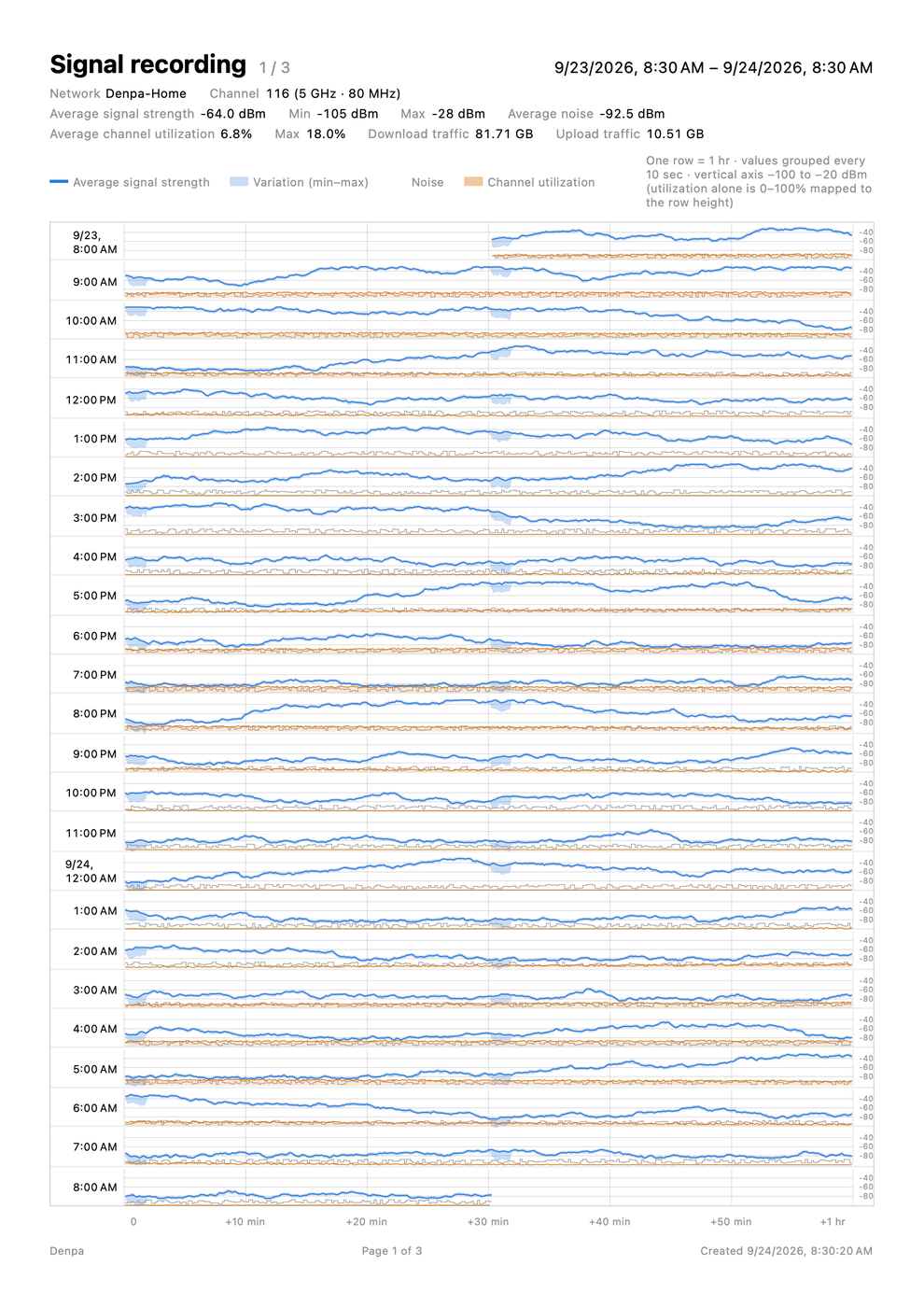
Both the signal recording and the diagnostics result can be laid out on A4 pages and printed, or saved as a PDF. Useful when you want to hand what you measured to someone as it is.
The Signal screen, with 24 hours of signal strength, noise, SNR, transmit rate, and traffic charted on one time axis

Signal

The Diagnostics screen, showing the result and the assessment, the speed, and the Internet quality

Diagnostics

The Page screen, showing Load time, Speed, and Transferred, along with the page that was loaded

Page

The first page of the printed sheet, on A4

The printed sheet

What this app cannot do

What the app cannot do matters as much as what it can, so it is stated up front.

Results stay on this Mac

Not sent

What never leaves your device

The signal recording, the diagnostics result, and any file you save all stay on this Mac. Nothing is sent to the developer or to a third party. There is no analytics, advertising, or tracking. Location is never recorded or sent. The names (SSID) and addresses (BSSID) of nearby networks do not leave the Mac either; they appear only on screen and in the files and printouts you save yourself. No request goes out to show the manufacturer — the IEEE registry is bundled with the app.

Traffic does occur

Where it connects in order to measure (the main destinations)

The speed test uses speed.cloudflare.com, response time uses 1.1.1.1, the connectivity check uses captive.apple.com, and DNS lookups use www.apple.com and others. On the Page screen it connects to the site at the URL you enter: you choose the destination, not the app. Measuring cannot happen without real network traffic. The full list is in the privacy policy.

Read the full privacy policy →

How to use

The Mac version has no How to use screen inside the app. Help → Denpa Help opens this page instead.

Recording the signal
Recording starts the moment you open the app. Nothing to set up. Drag the overview below the charts to change the range you are looking at, and point at a chart to read the values at that moment. Up to 24 hours is kept, and anything older is discarded. To keep it, choose File → Save and write it to a .denpa file.
More about the Signal screen →
Running the diagnostics
On the Diagnostics screen, click Start diagnostics and it measures right then. Nothing is measured until you do. Scanning for nearby networks is paused while measuring, because scanning occupies the radio for a few seconds and makes the values look worse than they are. The result can be saved to a .denpadiag file with File → Save, and printed.
Timing a page load
Enter a URL on the Page screen and it loads that page for real and times it. The speed shown here is not the speed of your connection, which the Diagnostics screen measures. Page loads are dominated by waiting, so the value comes out lower than the speed of the connection itself.
Printing it out
File → Print or PDF… lays the front window out on A4 pages, or saves it as a PDF. What gets printed is whatever is in front: the recording on the Signal screen, or the result on the Diagnostics screen.
Changing the settings
Press ⌘, to open Settings. There are three things to change: the appearance (System, Light, or Dark), whether a notice appears when the diagnostics start, and how much data a speed test uses (S 5 MB, M 20 MB, or L 30 MB; download and upload use the same amount). The display language is not switched in the app. Change it in System Settings → General → Language & Region → Applications.
If you are asked for permission
macOS asks for location access so the app can read the network name (SSID), the address (BSSID), and channel utilization. The location itself is not used. Local Network access is needed to measure the response time to your router. The app works without either of them, but it can measure less. See the privacy policy for details.

If something is not working, see Support.